
Problem: Your reminders are spread out all over the place.
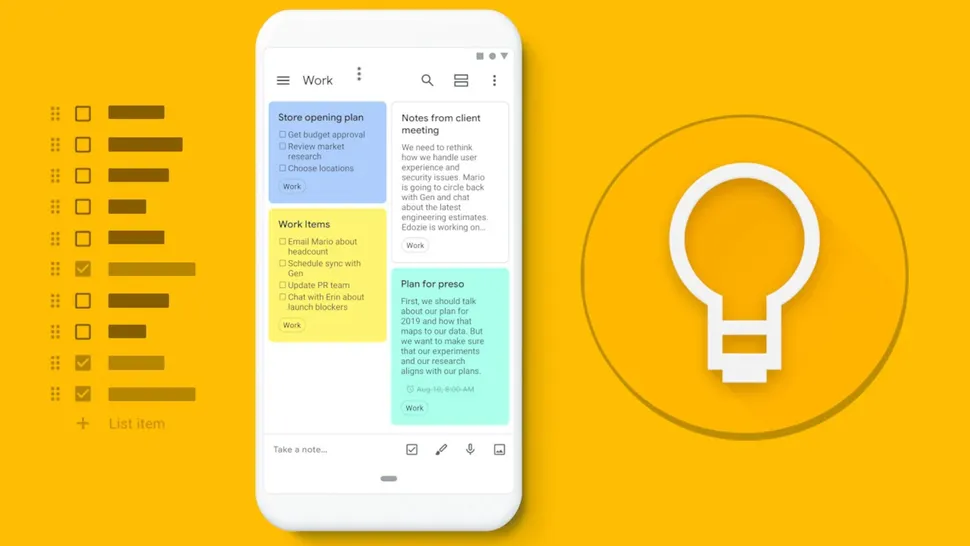
A lot of people who use Google Keep love how simple it is to make notes and set alarms. The problem is that your reminders have been living alone. Although you set a reminder in Keep, it won’t appear in your Google Calendar until you add it yourself. It’s not possible to ask Gemini about it, and your Gmail tasks and Keep reminders stay separate.
This breaking up causes confusion. You could lose track of which app has which reminder, which could cause you to miss deadlines and do work twice. This uneven approach has been annoying for people who like to be productive and use Google Workspace, especially since Google has been pushing Tasks as the unified solution since 2023.
Getting angry: managing multiple reminder systems is a pain
It’s a waste of time and mental energy to keep track of reminders on multiple platforms. During the day, you have to check multiple apps by hand when your Keep reminders don’t sync with your Calendar. If you use Google Assistant or Gemini to give voice commands, your reminders will live in a different place than your Keep notes.
This causes a lot of trouble. First, you lose sight of how your daily tasks fit into the bigger picture. Second, you can’t use the full power of Google’s ecosystem if each piece of software works alone. Third, because alerts from different apps come at different times, you might miss important dates.
It gets worse if you use more than one device to work. You could set an alarm on your phone on the way to work, but when you get to your desk, you’ll forget about it because it’s hidden in Keep and not in your Gmail Calendar or Tasks sidebar.

Google’s Unified Reminders-to-Tasks Migration is the answer.
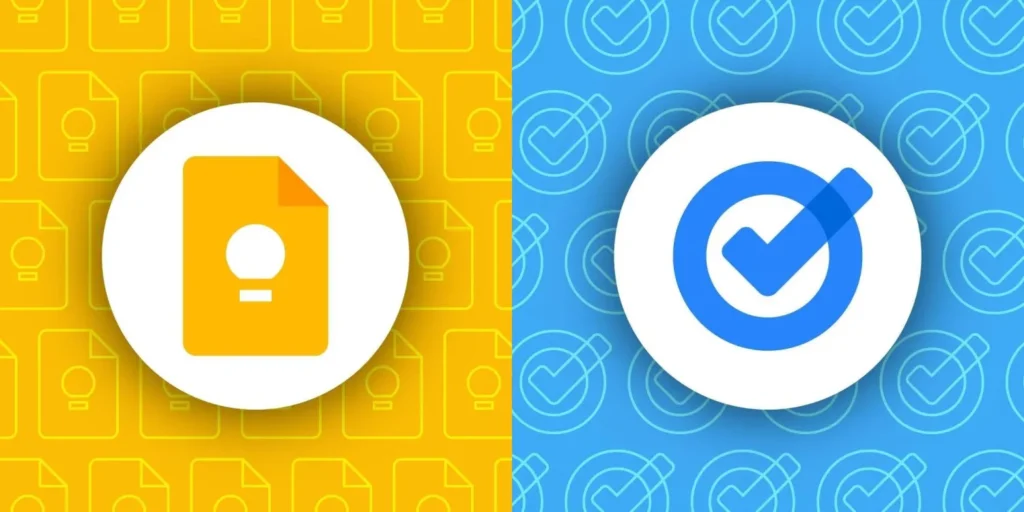
Google is now finally figuring this out. Google Keep reminders will move automatically to Google Tasks starting in October 2025. When you make a reminder in Keep, it will now show up in Tasks, Calendar, and even Gemini.
Now, when you tap the bell icon on a Keep note, you’ll see a blue Google Tasks icon with the words “Your reminders are saved in Google Tasks.” Later today, Tomorrow morning, Next week, and Pick a date and time are still available, but now these reminders are shared across your whole Google Workspace.
The rollout began on October 13, 2025, and all Google Workspace customers, Workspace Individual Subscribers, and personal Google account users should be able to use it fully within 15 days to a few weeks. There’s nothing you need to do to make the migration happen. As long as Tasks and Keep is installed, it will do it on its own.
Things that make the Google Tasks and Keep integration stand out: automatic cross-platform sync
The best thing about it is that it syncs automatically. Any reminder you make in Keep now shows up automatically in Google Tasks, Google Calendar, and Gemini with the Tasks extension. After doing this, all of your to-dos will be in one place, no matter where you made them.
Time- and date-based Keep reminders will show up as “From Keep” in your Google Tasks. You can change the time or date in Keep, Calendar, Tasks, or Gemini, which gives you options for how to organize your time.
Notes that last with separate task management
One smart thing about Keep is that when you delete a task in Calendar or Tasks, the original note stays. This means that your reference materials will be safe even after you finish the related task. You can delete both the note and the task if you want to. If you archive a note that has a task attached to it, the task will still exist on its own.
It makes sense to separate these things in the real world. Your Keep note could have meeting notes, brainstorming ideas, or reference material that you can still use after the reminder deadline has passed.
Integration of Gemini for Voice-Activated Task Management
You can now ask Gemini about your Keep reminders after this move. “Hey Google, show me my tasks” or “What reminders do I have today?” will bring up information about the tasks that Keep made for you. With voice activation, you can manage your tasks without using your hands and more easily throughout the day.
Time blocking with a calendar integration
Google Tasks and Google Calendar have always worked together, and now your Keep reminders do too. When you set a reminder time in Keep, it shows up on your Calendar grid right away. This helps you see your day and make sure you’re using your time well. This integration works with time-blocking strategies, which let you give tasks specific times to be done instead of just keeping track of when they’re due.
Several access points spread out in the workspace
You can now get to your Keep reminders from Gmail, Google Calendar, Chat, Drive, and even Google Docs, Sheets, and Slides. Just click on the Tasks sidebar. So you don’t have to switch between apps. Take a note of a task in Keep while you’re in Gmail. It will pop up in your sidebar.
Things that are good and bad about moving things that are good
One Source of Truth: To-do lists in Keep, Gmail, Calendar, Chat, Docs, and Gemini will all be the same. All of them will be in Google Tasks. This saves time since you won’t have to look through several apps to find reminders.
This app is better for organizing because it lets you do things like star important items, make multiple lists of tasks, and add subtasks that you couldn’t do with Keep. You can sort tasks by due date, importance, or by hand.
You save time by not having to switch between apps as often. This lets you get more done. People spend two and a half hours a day on tasks that can be done faster or automatically, according to a study. You don’t have to do it twice by hand if your reminders sync between platforms on their own.
It’s now easier to get notifications. Remember things will no longer be sent by Keep, but by Google Calendar or Tasks. This makes sure you always get alerts in the same way, so you don’t get tired of getting them from different places.
You can always see your tasks in the sidebar, even when you’re writing a report in Gmail or Docs or making plans for the week in Calendar. When you can see everything at all times, you can keep your word without having to stop working.
A few things
Thoughts of goodbye based on where you are: This is the worst loss. Keep does not now remind you of your location. These would have shown you when you got to or left a certain place. Set up location reminders in the past? You will no longer get alerts based on where you are. Instead, that information will be put into the field for task description.
Google Keep won’t be able to remind you of things if you don’t have Calendar or Tasks installed. Without Google Calendar or Tasks on your phone or tablet, you won’t see any alerts. You need to use more apps now.
In Keep, you can change the date and time of a task but not its name. You can change a task’s date and time in Keep, but not its name. It takes longer to change the name of a task because you have to open Tasks or Calendar first.
Not possible: Google Tasks can only hold 100,000 tasks at a time. If you have more than these prompts in Keep, some of them will stay in Keep and not move to Tasks. A lot of people have set a lot of reminders, so 100,000 might be too many for them.
Cut Down on Long Reminders: If the title of your Keep reminder is very long, it will be cut down when it moves to Tasks. If you were used to getting detailed texts that told you what was going on, this might be hard to get.
It gets harder to understand things when you add tasks because they make things more complicated. Keep was easy to use; it only had to-do lists and notes. Even if you like how simple Keep is, it might be too much to keep up with all the lists, sublists, and recurring events.
Stories and proofs from real life
The first way it can be used is for project managers to email people tasks.
As a project manager, let’s say you check Gmail for emails from clients. A customer sends a request that needs to be met in three days. To add something to your calendar, you used to have to copy it to Keep, set a reminder, and then do it by hand.
You can now click “Add to Tasks” from within an email in Gmail. Putting this all together makes a task that is connected to the email. You can add project information to a Keep note and set an alarm to help you remember. It’s in the sidebar of your Gmail inbox, so you don’t have to leave it to see it. It will show up in Tasks and your calendar on its own.
You won’t have to enter the same information twice with this process. Twenty to thirty things need to be done every day by the project manager. It takes about 5 to 10 minutes less to do each task. That saves five hours of time every week.
Students managing their assignments across devices (Use Case 2).
On their phone, a college student writes down assignment notes in Keep while they’re in class. They let you know when things are due. These alerts will now show up in the Tasks sidebar when they get home and open their laptop to work in Google Docs.
The student doesn’t have to open Keep to see which assignment is due next. They can also look at their Google Calendar to see when a lot of assignments are due at the same time. This helps them plan their study time better. They can quickly find out “What assignments do I have this week?” thanks to the Gemini integration.
Case 3: The marketing team is setting due dates for content
A marketing team talks to each other every day on Google Chat and shares notes on ideas on Google Keep. When the team decides when to post content, they add reminders to the relevant Keep notes.
Now, those reminders will sync automatically with the Tasks and Calendar of every team member. While writing emails, the content writer can see upcoming due dates in the sidebar of their Gmail account. When scheduling posts, the social media manager can see the same due dates in Calendar. During stand-up meetings, the team leader can ask Gemini about tasks that need to be done.
Because everyone can see what’s going on, there are fewer status update meetings and “When is this due?” questions in chat. This saves the team several hours a week of coordination time.
Case 4: A freelancer is in charge of projects for other people.
Keep is used by a freelance designer to keep client briefs, project notes, and images that inspire them. They remind people to check in with clients, turn in drafts, and deliver final copies.
With the Tasks migration, these reminders show up in their Calendar, which helps them see how much work they have to do and when it needs to be done. When a potential client emails to ask if the freelancer is available, they can open the sidebar of their Gmail, look at their Tasks to see what due dates are coming up, and know right away if they can take on new work—all without leaving their inbox.
The integration also helps with tasks that need to be done over and over again. The freelancer can set up a recurring task in Tasks to remind them to send invoices every month. This task will keep reminding them even after the original Keep note has been archived.
Questions People Ask Often
Will my old reminders that work based on where I am still work?
Not at all. With this migration, location-based reminders will no longer work. The location information from your old location reminders will move to Tasks, but it will only be shown as text in the task description field. When you get to or leave those places, you won’t get any more notifications. You’ll need to find a third-party app that specializes in geofencing reminders if location alerts are important to your work.
Do I have to move my Keep reminders to Tasks by hand?
Not at all. The migration takes place on its own. Beginning October 13, 2025, Google will do this over the course of a few weeks. There’s nothing you need to do. If you have both Keep and Tasks on your device, your reminders will show up in Tasks without you having to do anything. If you are in charge of Workspace, make sure that your organization’s Tasks service is turned on. If it isn’t, the migration won’t happen.
After the move, will I still be able to make reminders in Google Keep?
Yes. Yes, you can still use Keep to make reminders. The main difference is that those reminders will be saved automatically to Google Tasks and will work with both Calendar and Gemini. You’ll see the Google Tasks icon and the message “Your reminders are saved in Google Tasks” when you tap the bell icon on a Keep note. It still lets you choose from Later today, Tomorrow morning, Next week, and a custom date and time.
When I finish a task in Google Tasks, what happens to my Keep note?
When you check off a task in Tasks or Calendar, it doesn’t change in the original Keep note. This is done on purpose. Your Keep note could have information you need to look something up, ideas you want to try, or information you want to remember even after the deadline has passed. You can delete the note and the task by hand if you want to. The task’s status doesn’t change if you archive the Keep note; the task still shows up in Tasks and Calendar.
Finally, some thoughts: a step toward easier productivity
Moving reminders from Keep to Tasks is a big step toward making Google’s productivity ecosystem more unified. Google users have had to deal with different reminder systems in Assistant, Calendar, and Keep for years. Google Tasks is the last piece of the puzzle that puts everything together.
It’s easy to see the benefits. You can see all of your tasks at once, no matter where you made them. You don’t have to switch apps to manage your reminders in any Google Workspace app. The Gemini integration makes it easier to use your voice. This integration gets rid of problems and saves time for people who like to be productive and use Google’s ecosystem.
But the migration isn’t completely smooth. People who used geofencing for grocery lists, errand reminders, or tasks that needed to be done in a certain place will miss the location-based reminders. Keep-only users who liked how simple the app was might get annoyed by the fact that they need to have Calendar or Tasks installed in order to get notifications. Power users have to go through an extra step because they can’t change task titles directly in Keep.
Even with these problems, Google’s long-term strategy calls for the move. Tasks is now where all of your to-do lists live in Gmail, Calendar, Chat, Docs, Gemini, and Keep. This one system makes your commitments easier to see and manage, whether you’re a student managing homework, a freelancer managing clients, a project manager managing teams, or just someone trying to remember to buy milk.
The rollout is going on right now. When you tap the bell icon in Keep for the next few weeks, you’ll see the change. Think of it as a chance to make your work easier. Use Tasks to make a list of things you need to do, check out the Calendar integration to block off time, and ask Gemini about your upcoming reminders. At first, the change might feel strange, but the long-term productivity gains make it worth it.


